Your Tegra Is Lying to You: The Hidden Battery Killers Nobody Talks About
You've done everything right. Screen brightness is down. Wi-Fi gets switched off when you're not using it. You even installed one of those battery saver apps that promises to "optimize" your device. And yet, by 3 PM, you're hunting for an outlet like your life depends on it.
Here's the uncomfortable truth: the advice most people follow for extending battery life on Tegra devices barely scratches the surface. The generic tips floating around Reddit threads and YouTube tutorials are fine for a generic Android tablet, but Tegra hardware has its own set of quirks — and if you're not addressing those specifically, you're fighting the wrong battle.
Let's get into what's actually draining your device, and more importantly, what you can realistically do about it.
The Tegra CPU Governor Problem Most Owners Ignore
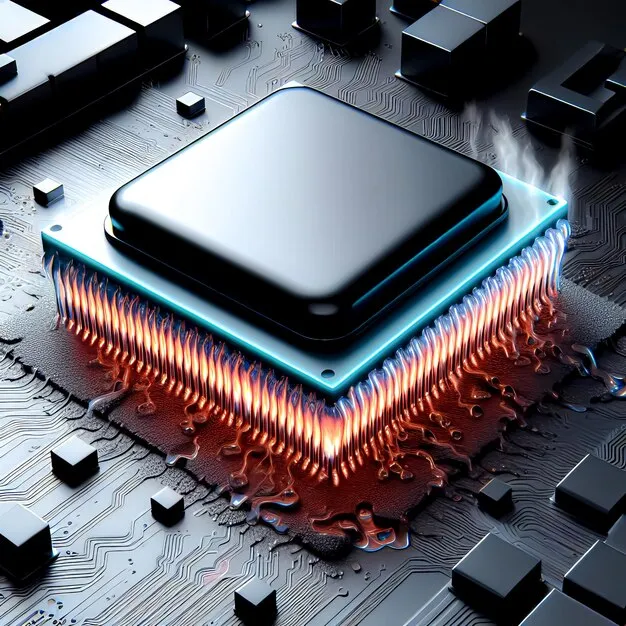
NVIDIA's Tegra chips use a CPU governor to decide how much processing power to hand out at any given moment. On paper, this should mean your device conserves energy when it doesn't need full performance. In practice, a lot of Tegra devices — especially older ones running stock firmware — default to governors that are way too aggressive about ramping up clock speeds.
The interactive governor, which shows up on a surprising number of Tegra builds, is notorious for this. It's tuned to respond quickly to any processing demand, which is great for responsiveness but terrible for sipping battery. Even a mildly active background process can trick it into spinning up cores you absolutely don't need right now.
If you have root access, tools like Kernel Adiutor or EX Kernel Manager let you swap governors. The conservative or schedutil governors tend to perform much better in real-world battery tests on Tegra hardware. If you're not rooted, check whether your device's developer options expose any governor settings — some OEM builds do.
Background Processes Are Worse Than You Think (And You Can Prove It)
Here's a diagnostic anyone can run without root or special tools. Open your device's Battery settings and look for the detailed breakdown by app and system component. Most people glance at this and move on. Don't. Tap into the individual entries and look at "Background activity" specifically.
What you're hunting for are apps that show significant background drain even when you haven't touched them in hours. On Tegra devices, this is often made worse by apps that weren't optimized for the ARM architecture variant Tegra uses — they can end up in inefficient polling loops, waking the CPU more frequently than a well-behaved app would.
For a deeper look, enable Developer Options (tap Build Number seven times in About Device) and use the Running Services screen. This shows you exactly what's active in memory right now. Cross-reference anything suspicious with CPU-Z or AIDA64, which can show per-process CPU usage in real time. You might be surprised what you find — certain sync services, push notification handlers, and even some system components from manufacturer add-ons can be quietly grinding away in the background.
Driver Bloat: The Tegra-Specific Issue Nobody Wants to Talk About
This one's a bit more technical, but stick with it because it matters. Tegra devices often ship with vendor-specific drivers for the GPU, ISP, and various hardware accelerators. When manufacturers push out software updates — or stop pushing them — these drivers can fall out of sync with the OS layer sitting on top of them.
The result isn't always a crash or a visible bug. Sometimes it's just inefficiency: the GPU getting called when it shouldn't be, hardware acceleration paths that aren't working correctly and falling back to software rendering, or power management states that never quite kick in the way they're supposed to. Your device feels fine, but underneath, it's burning more cycles — and more battery — than the hardware is actually capable of.
The fix here depends on your situation. If your device is still receiving updates, stay current — manufacturers do quietly patch power management issues. If you're on abandoned hardware, this is one of the stronger arguments for exploring a custom ROM built specifically for your Tegra device, where the community has often done the legwork of cleaning up driver interactions.
The Counter-Intuitive Charging Habits That Actually Help
Most people have heard "don't charge to 100%" by now. But the Tegra-specific angle here involves heat management during charging. Tegra chips run warm under load, and if you're charging while gaming or streaming — common use cases for Tegra device owners — you're combining two heat sources simultaneously. Lithium-ion batteries degrade faster at elevated temperatures, full stop.
The counter-intuitive move: charge your device when it's idle, not when you're actively using it. If you need to top off during a session, consider dropping to airplane mode briefly while you charge, then reconnecting. You'll hit a meaningful charge level faster and with less heat stress on the battery.
Also worth knowing: if your Tegra device has been sitting at 100% charge plugged in for extended periods — say, you use it as a desk device most of the time — you're slowly degrading capacity in a way that's invisible until it isn't. If your use case allows it, keeping the device between roughly 20% and 80% over the long haul preserves capacity far better than constant full cycles.
Digging Into Wakelocks Without Root
Wakelocks are system-level mechanisms that prevent the CPU from sleeping. They're necessary — things like incoming calls and alarms depend on them — but misbehaving apps and services can hold wakelocks open indefinitely, keeping your processor from ever fully resting.
You don't need root to get basic wakelock data. AccuBattery and GSam Battery Monitor both surface wakelock information in their free tiers. Run one of these apps for a full day, then check which apps or system components are holding wakelocks most frequently. Anything that's waking your device more than a few times per hour when you're not actively using it is worth investigating.
For Tegra devices specifically, keep an eye on anything related to the Tegra hardware abstraction layer or NVIDIAs proprietary services if they're present on your build. These have been known to behave oddly on certain firmware versions.
The Takeaway: Stop Treating Your Tegra Like a Generic Device
The battery life conversation for Tegra hardware needs to move past "turn down your screen brightness." The real leverage points — governor behavior, driver efficiency, wakelock management, and smart charging habits — are all accessible to owners who know where to look, even without rooting their device.
Spend thirty minutes running the diagnostics outlined here and you'll almost certainly find at least one thing that's been quietly hammering your battery this whole time. The fix might be as simple as restricting background activity for a couple of apps, or as involved as exploring alternative firmware. Either way, you'll be working with real information instead of guessing.
Your Tegra hardware is capable of better battery life than you're probably getting. It just needs you to look in the right places.