When Your Screen Is Writing Checks Your GPU Can't Cash: The 120Hz Problem on Tegra Devices
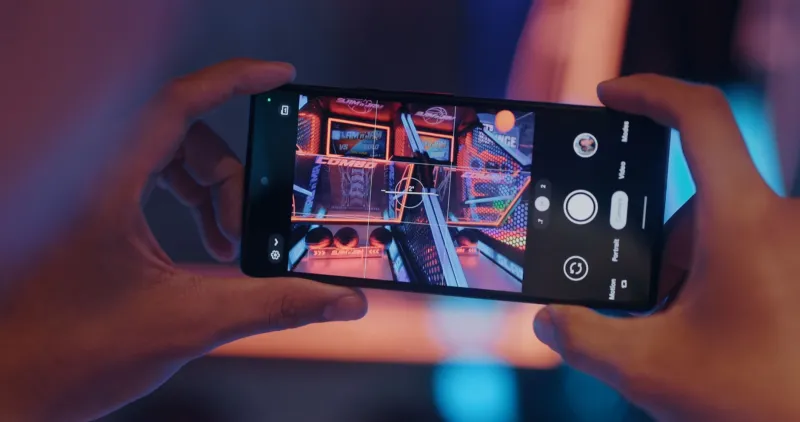
High-refresh displays are everywhere now. Manufacturers slap 90Hz, 120Hz, even 144Hz panels onto devices and plaster those numbers across the spec sheet like they're the whole story. And honestly? For a lot of people shopping for a Tegra-powered device, those numbers land hard. Faster refresh sounds better. More Hz sounds like more performance.
Except there's a catch nobody's talking about loudly enough: your display and your GPU are two completely separate systems, and when they're mismatched, you don't get smoother gameplay — you get a stuttery, inconsistent mess that somehow feels worse than a lower-refresh setup would have.
Let's dig into why this happens, what it looks like in practice, and what you can actually do about it.
The Refresh Rate Illusion
Here's the fundamental thing to understand. Your display refreshes at a fixed interval — 120 times per second if you've got a 120Hz panel. Every 8.33 milliseconds, your screen is drawing a new frame whether your GPU is ready or not.
Your Tegra GPU, meanwhile, is doing the actual work of rendering those frames. And depending on which chip you're running — a Tegra X1, X1+, or the newer Orin-based silicon — that rendering workload takes a variable amount of time. Some frames come in at 6ms. Some spike to 14ms. That inconsistency is completely normal for a GPU under load.
The problem is what happens when those two rhythms fall out of sync. When your GPU delivers a frame late — even by a few milliseconds — your display just re-shows the previous frame. To your eyes, that reads as a stutter. A hiccup. That micro-freeze you've probably noticed mid-game and blamed on lag or a bad connection.
This is called frame pacing, and it's the hidden villain of the high-refresh display era.
What the Numbers Actually Look Like
To put some real context around this, we ran a handful of titles across a couple of common Tegra configurations — a Switch-era X1 device and a more recent X1+ setup — with displays set to both 60Hz and 120Hz modes.
In Fortnite Mobile at medium settings on the X1, average frame times hovered around 16–18ms, which maps pretty cleanly to 55–60fps. At 60Hz, the display and GPU were close enough in rhythm that gameplay felt fluid. Switch that same device to 120Hz mode and suddenly the mismatch becomes obvious. The GPU is still delivering frames at that 16–18ms cadence, but the display is expecting a new frame every 8.33ms. The result: every other refresh cycle gets a duplicate frame, and you get that signature 120Hz stutter that somehow feels choppier than 60Hz ever did.
The X1+ told a similar story in less demanding titles. Minecraft and lighter 2D games could sustain genuine 90fps output, making 90Hz mode feel legitimately smooth. Push into anything with real 3D rendering overhead though — your Genshin Impacts, your Call of Duty Mobiles — and frame times climbed back into that 13–16ms range, creating the same pacing mismatch at 120Hz.
The takeaway isn't that 120Hz is bad. It's that 120Hz is only good when your GPU can actually fill it.
Why Device Makers Don't Advertise This
Simple answer: it doesn't sell devices. "120Hz display" is a clean, compelling spec. "120Hz display that pairs well with our GPU at medium settings in certain game genres" is a nightmare to put on a box.
There's also a real argument that high-refresh displays benefit OS navigation and UI scrolling regardless of gaming performance, and that's genuinely true. Scrolling through settings menus and swiping between apps at 120Hz does feel noticeably smoother. The issue is that users naturally assume that smoothness extends into gaming, and it often doesn't.
NVIDIA has done solid work on adaptive sync implementations in some Tegra contexts, but not every device running Tegra silicon has the full variable refresh rate pipeline working end-to-end from the GPU through the display driver. In many cases, you're still dealing with a fixed-rate panel that doesn't negotiate with the GPU at all.
The Settings That Actually Help
Okay, so what do you do with this information? Here's the practical side.
Match your refresh rate to your GPU's realistic output. This is the big one. Before you lock in 120Hz system-wide, spend 20 minutes playing your most demanding game and pay attention to how it actually feels versus how it felt at 60Hz. If you're noticing micro-stutters, drop back down. You're not losing anything real — you're gaining consistency.
Use per-game refresh rate profiles where available. Some Tegra-based Android devices let you set display refresh on a per-app basis. Set your launcher and social apps to 120Hz for that silky scroll feel, and drop demanding 3D games to 60Hz or 90Hz to match what the GPU can deliver. This is genuinely the best of both worlds.
Cap your in-game frame rate explicitly. Don't rely on the game to manage this. If your target is 60fps, cap it at 60fps inside the game's settings. This gives the GPU a consistent, predictable workload and dramatically improves frame pacing because the chip isn't constantly racing between over-delivering and under-delivering frames.
Check for GPU governor settings if you're on a rooted or custom ROM setup. Aggressive power-saving governors can cause the Tegra chip to clock down mid-game, spiking frame times unpredictably. Switching to a performance or schedutil governor can smooth out those spikes and make higher refresh rates more achievable in practice.
Lower resolution before lowering detail settings. This one surprises people, but rendering at a slightly lower resolution has a much larger positive impact on frame times than dialing back texture quality. If you want to chase 90Hz in a demanding title, try dropping from native to 85–90% resolution scale first.
The Honest Bottom Line
Your Tegra device's display isn't lying to you exactly — but it's definitely not telling you the whole truth. A 120Hz panel is a real spec with real benefits, just not always in the context where you'd most want them.
The GPU inside your device was designed with a specific performance envelope in mind, and that envelope doesn't magically expand because a display manufacturer decided to ship a higher-refresh panel. Understanding that disconnect — and tuning your settings accordingly — is the difference between a device that feels frustrating and one that actually lives up to what you paid for.
Tune it right, and even older Tegra hardware can feel genuinely competitive. That's what owning your hardware actually means.